In a network, everything goes through the router. As a result, its security determines the entire system’s overall security.
This post explains simple steps to keep your Wi-Fi router secure, enough to give you peace of mind. Security is nuanced—the only way to be absolutely secure in networking is to unplug.
Dong’s note: I originally published this post on April 17, 2018, and last updated it on January 13, 2026, to add up-to-date, relevant information.
Home Wi-Fi router security: How to keep your network safe
To have a local network, you need a router, and preferably no more than one.
Nowadays, home routers often include a built-in Wi-Fi access point—they’re Wi-Fi routers. In many cases, that router’s Wi-Fi coverage is extended by adding more access points to form a Wi-Fi system.
Still, in any case, it’s often the router unit that handles security.
It’s straightforward to manage wired devices: you can simply unplug their network cables. Things are more complicated with Wi-Fi clients and remote parties on the Internet. The former are designed to connect wirelessly, and the latter may try to get in through your broadband connection. Both happen behind the scenes with no visible signs.
Type of routers to consider
Routers are not created equal. Shapes and sizes aside, they are all differentiated by their firmware, which determines the router’s settings and features.
The first thing to keep in mind for router security is to get hardware from a reputable networking vendor with long-term support—these best lists will help.

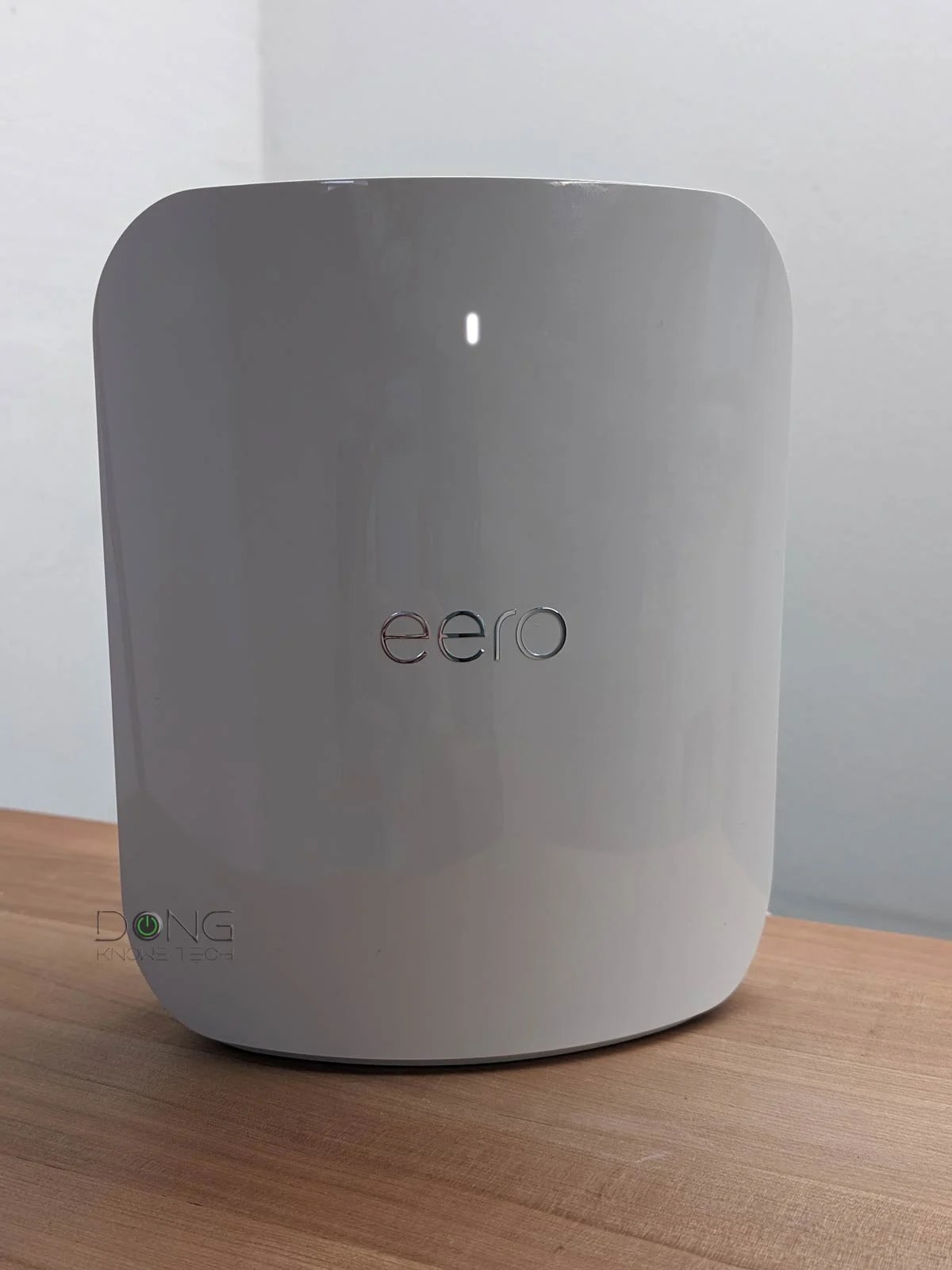
After that, there are two main types of routers to consider:
- Vendor-dependent routers: those that must always connect to the vendor to work, such as Amazon’s eero, Google’s Wi-Fi/Nest, and TP-Link’s Deco. They are app-operated hardware with limited features and settings.
- Vendor-independent routers: standard routers that can work independently of the hardware vendor. Examples are those with an integrated web-based user interface from Ubiquiti, Asus, Netgear, or TP-Link.
Generally, with vendor-dependent routers (#1), there’s less you can do with your network in terms of security and otherwise. They often come with an add-on premium to offer more features and better security—everything is at the mercy of the hardware vendor.
If you really care about controlling your network’s security, standard routers (#2) with a web user interface accessible via their default IP address are the way to go.
While many standard routers offer the option to link to a vendor account for added features or convenience, that’s generally not required.
Tip
When logging into the web-based user interface of a home router or most devices, you might encounter a privacy/security error notice in which the browser suggests the webpage is potentially unsafe, similar to the screenshot below.
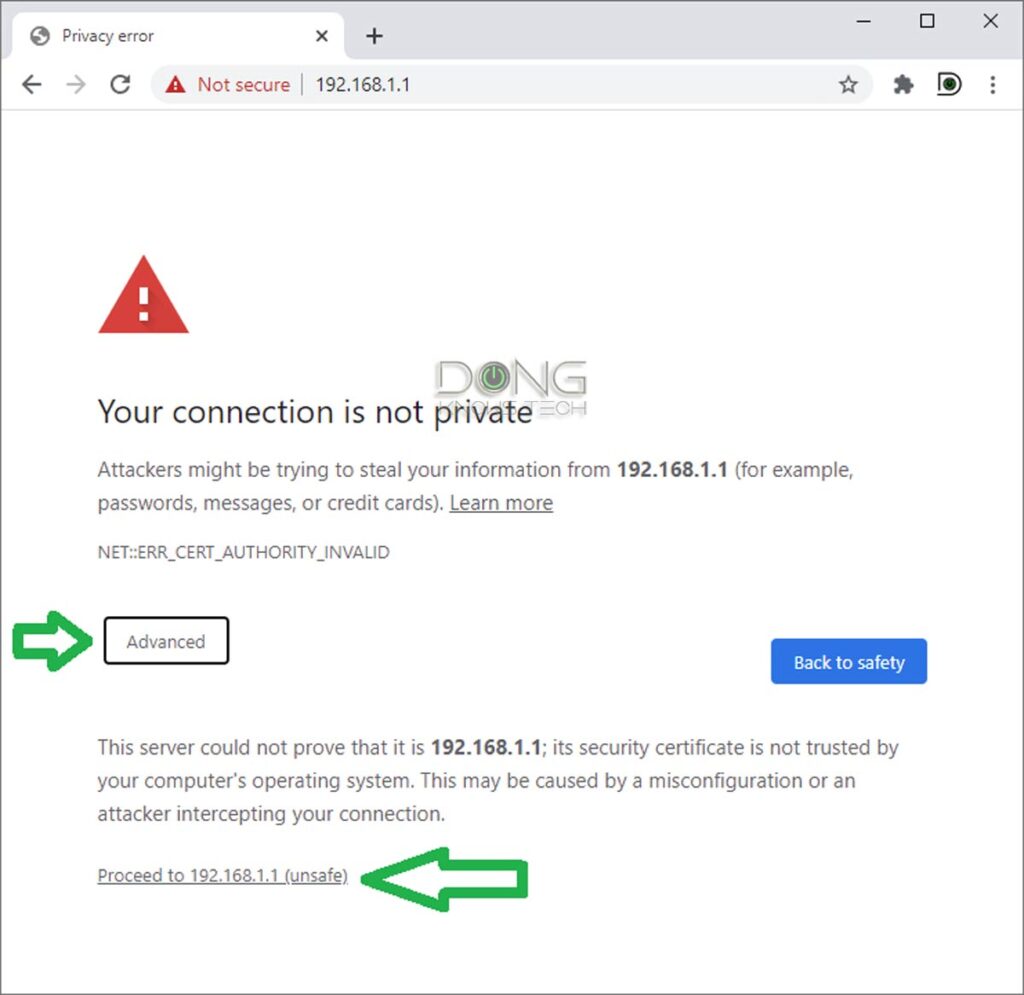
The reason is that the device’s built-in web server doesn’t have a mechanism to prove that it supports the now-required HTTPs protocol. For that, among other things, it needs to be signed by an external party.
It’s safe to ignore this notice and proceed to the interface when accessing a device within your local network.
Different browsers have slightly different warnings and ways to bypass them, but they all require clicking a few extra times. Pay close attention, and you’ll find out the way to proceed.
With that, let’s move on to securing your home Wi-Fi router, regardless of the type you choose.
Home Wi-Fi router security: Four items to keep your network safe
If your network uses specialized wiring other than standard network cables, that might require additional security. More on that in the posts on Powerline and MoCA.
After that, no matter which type of router you use, there are four things you can do with it to improve your network security:
- The admin password.
- The Wi-Fi password.
- The Guest network.
- The firmware.
Let’s go into the details of these four items.
1. The admin password: Make it unique and hard to guess
The admin password allows you to change the router settings. A person with this password has complete control over the network.
Some routers—especially ISP-provided gateways—have known default admin passwords. In this case, it’s imperative that you change that password as soon as you start using a router. When possible, also change the username to something other than “admin” or “administrator.”
Most routers’ initial setup process includes a step for you to change or create the admin password.
Make this admin password hard to guess and, most importantly, different from the Wi-Fi password. Again, this is the password used to manage the router—it’s not the one needed to get a device connected.
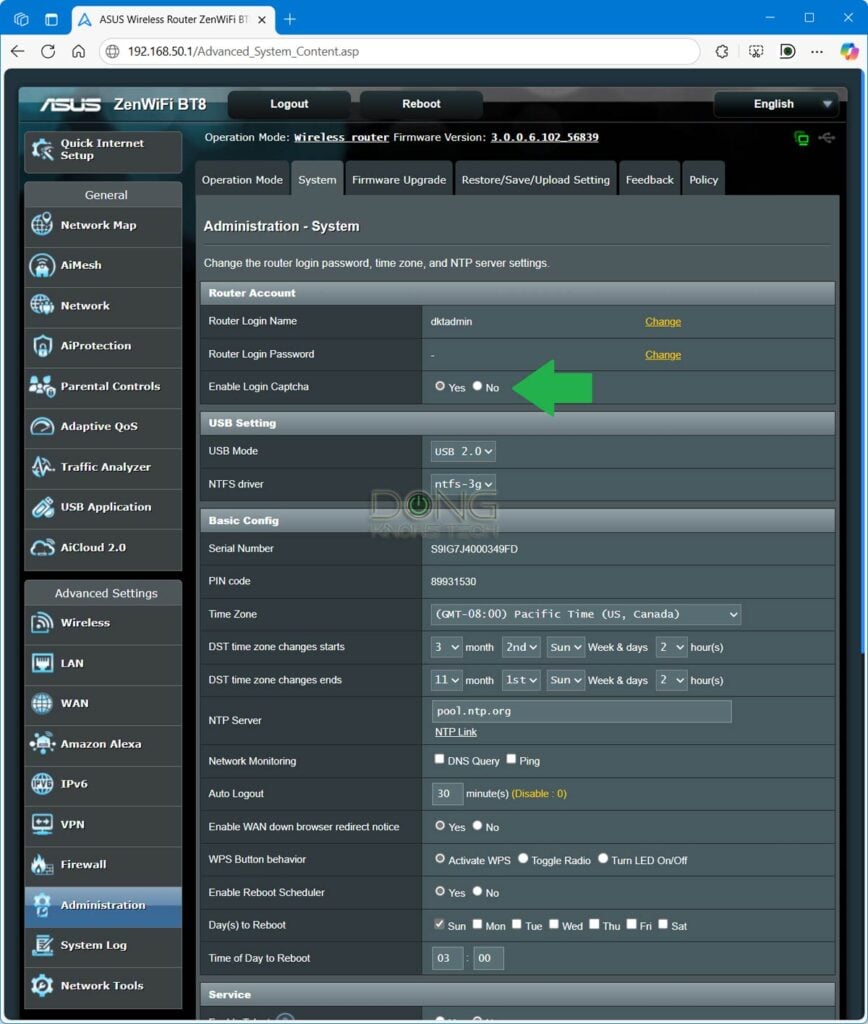
Some routers have a built-in CAPTCHA to ensure only a real person can log in. Others might even have two-factor authentication (2FA) for the admin access. It’s a good idea to use these added security features for the admin access.
1. The Wi-Fi password: Make it unique but easy to enter
A Wi-Fi network includes the network name (a.k.a SSID) and its password. The network name itself is not a secret—it appears on any device. The part that is not seen and keeps the network secure is the password.
Tips
When it comes to passwords, it’s always about keeping them a secret that matters. Complexity is not always a positive attribute. The goal is to create a password that is both difficult to guess and easy to remember and use.
A Wi-Fi password that includes letters, numbers, uppercase and lowercase, and special characters can be a real pain, especially when you need to enter it into an IoT device, such as a printer or a media streamer—even a modern one like the Fire TV.
Generally, when it comes to Wi-Fi, it’s best to use a digit-only password. Here’s a way to make a password effective and easy to remember:
Pick a long sentence or phrase and use each word’s letter count to form the password.
If you use that previous sentence, the password would be 414833545652438—use another phrase for yourself. If you think you can’t remember the password, write that sentence down instead of the password itself.
This password allows a device to connect to your Wi-Fi network. Knowing the Wi-Fi password, among other things, a person can:
- Use your internet connection.
- See your network resources, such as a file server, a printer, or a media streamer, though that doesn’t necessarily mean they can access these resources—a server often requires a separate login.
- See your router’s IP address and access its admin interface with the admin password mentioned above.
That said, it’s imperative that this Wi-Fi password be different from the admin password. If you want to offer someone access to the Internet (#1) and nothing else, a Guest Wi-Fi network is the secure option to avoid unnecessary risks (#2 and #3).
3. The Guest Wi-Fi network
A Guest Wi-Fi network lets you share your Internet connection without potentially compromising your entire system. It’s a fancy name for a virtual SSID network that’s isolated from your main one.
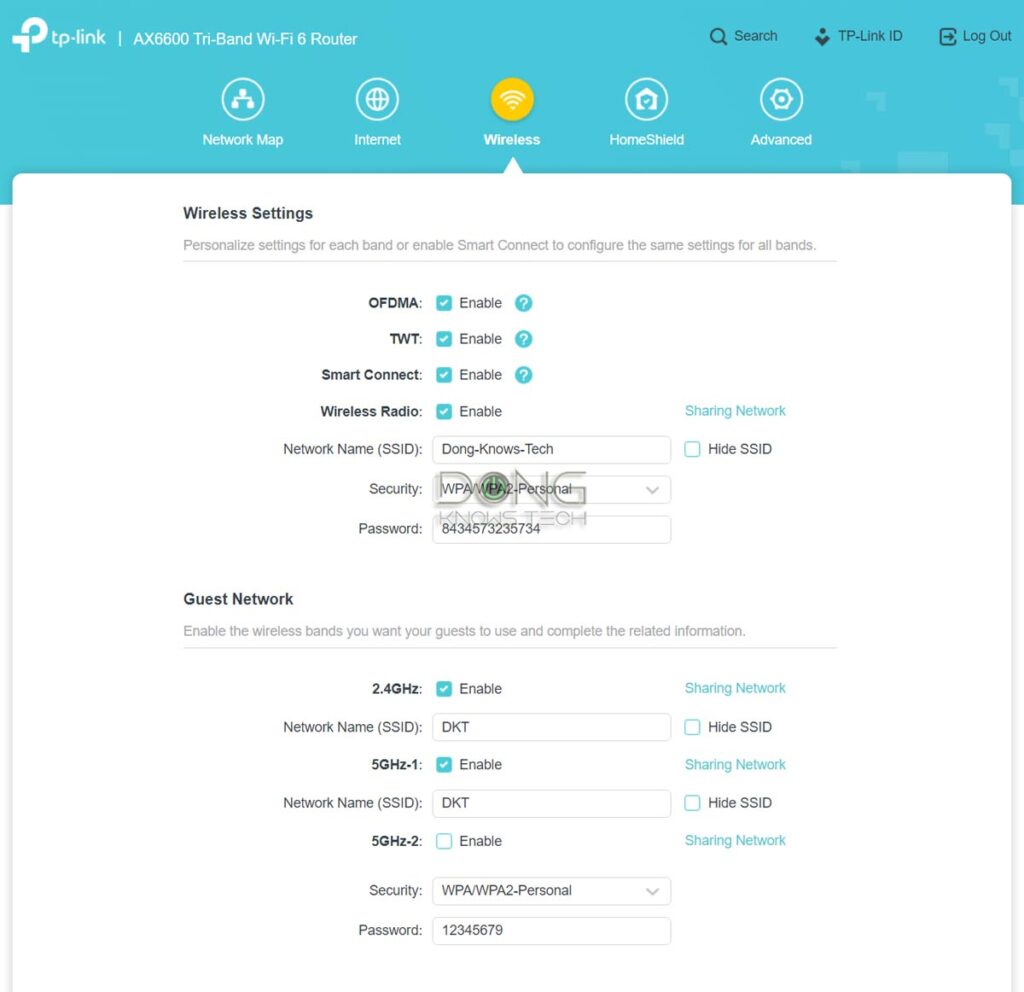
By default, the Guest network allows only Internet access. Specifically, the connected device can’t “see” any other devices within the same network.
All home Wi-Fi routers include the Wi-Fi Guest network feature—you just need to turn it on via the web interface or mobile app. Advanced routers often offer the option to isolate a specific SSID for the same effect.
A few things about setting up a Guest network:
- If you enable password protection for a Guest SSID, make it different from the primary Wi-Fi network password and the admin password.
- Make sure this Guest SSID is isolated (which is often the default setting). This setting is generally labeled as “Access Intranet” (disabled) or “AP isolation” (enabled).
- If you give guest access to many people, such as when providing a public Wi-Fi network, it’s a good idea to limit bandwidth per device.
- You don’t need to name your Guest SSID with “guest” in it.
A Guest Wi-Fi network also comes in handy when you want to isolate specific devices from the rest of the main network, including your own devices.
4. The firmware: Keep it up to date and turn on protection features
Firmware is the operating system of a router. It decides how well a router works and how secure it is. Networking vendors often release new firmware versions to improve the router’s performance and security.
It’s a good idea to check for new firmware and update your router at least a few times a year, especially when there’s a security bulletin about your router or the networking vendor.
While it’s generally best to use a router with the latest firmware, enabling the auto firmware update feature can cause issues, such as unexpected interruptions. That said, if you choose to use auto firmware update, pick a time when you know your network is idle.


The second thing you can do with a router’s firmware is enable its built-in online protection feature. Not all router brands have this, but those from Ubiquiti’s UniFi lineup and ASUS have excellent security features for free. Other brands, such as TP-Link and NETGEAR, offer this feature as premium add-ons.
The last thing to note about the firmware is the remote access features, such as SSH, Telnet, or remote web access. Not all routers have these, and those that do always have them disabled by default. It’s best to have a good understanding of the WAN IP address, Dynamic DNS, and port forwarding before enabling any remote access or management applications.
How to fix a compromised router
A compromised router generally appears to work normally while feeding the remote party with your personal information or manipulating your online activities.
Here are the telltale signs that your router has been hacked:
- Your browser (Chrome, Firefox, Safari, etc.) often goes to unwanted websites, sometimes without you doing anything.
- You get unrelated, irrelevant, or spam results when doing an online search. Sometimes, it seems a different search engine than the one you pick (Google, Bing, etc.) is being used.
- When accessing your router’s web interface or mobile app, the admin password you created no longer works.
- The router’s DNS settings differ from “Auto” or what you have entered.
- There are settings you didn’t create, such as a new Wi-Fi network or port-forwarding entries.
- Remote access features, such as Telnet or SSH, are enabled without you doing so.
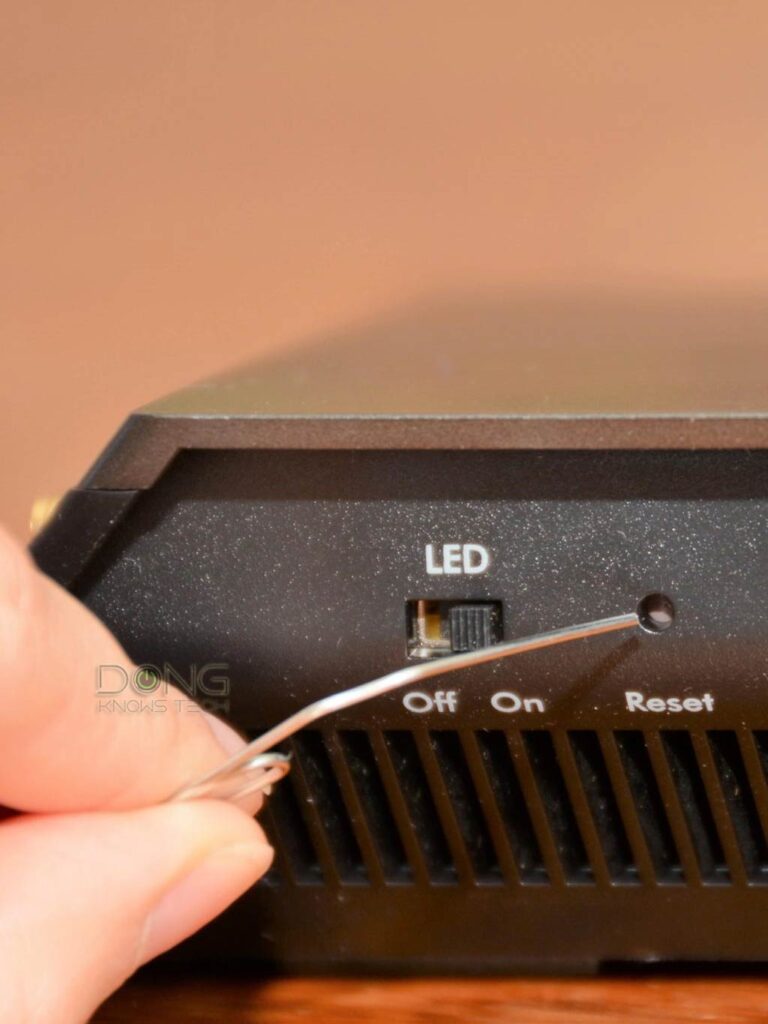
If your router has been hacked, the best and possibly the only way to fully repair it is a hard reset. After that, update its firmware to the latest and set up your network from scratch.
The takeaway
To summarize, to keep a tab on your home Wi-Fi router security, you first need a router that allows you to do so to a great degree. That usually means getting one that can work without first connecting to the vendor.
After that, change the admin password and, if possible, the login username as well. Ensure the admin password differs from the Wi-Fi password(s) and keep both secure.
And finally, when applicable, enable remote management only if you know how to use it safely. And keep your router up to date with the latest firmware.
Security is nuanced. By default, every device connected to the Internet is vulnerable to a certain extent. The only way to be absolutely secure is to turn that device off. However, as long as you follow these best practices mentioned here, you can consider your router, and hence your home network, reasonably safe.