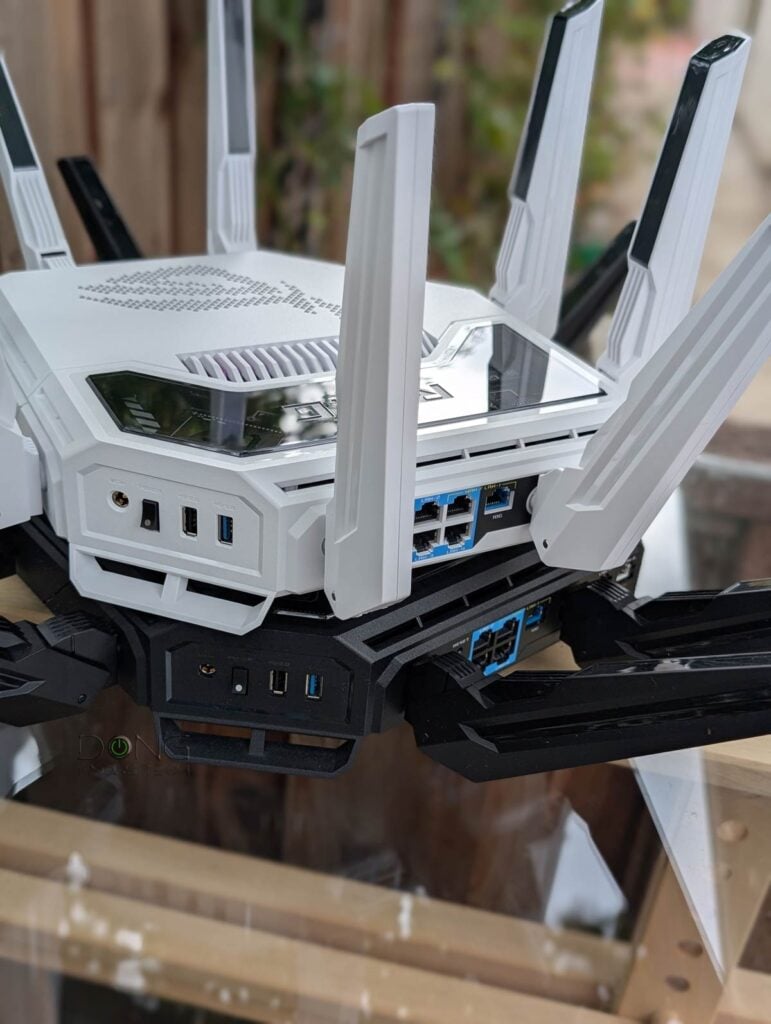
This post will walk you through combining two or more ASUS routers for a well-performing, seamless AiMesh setup. “Well-performing” is the key here, and you might want to pay close attention to the details.
This post is part of my series on ASUS’s AiMesh, a popular way to build a robust home Wi-Fi (mesh) system. Other parts of this series are in the Related Stories box below.
Dong’s note: I first published this piece on April 13, 2023, and last updated it on January 26, 2026, to add the latest information.
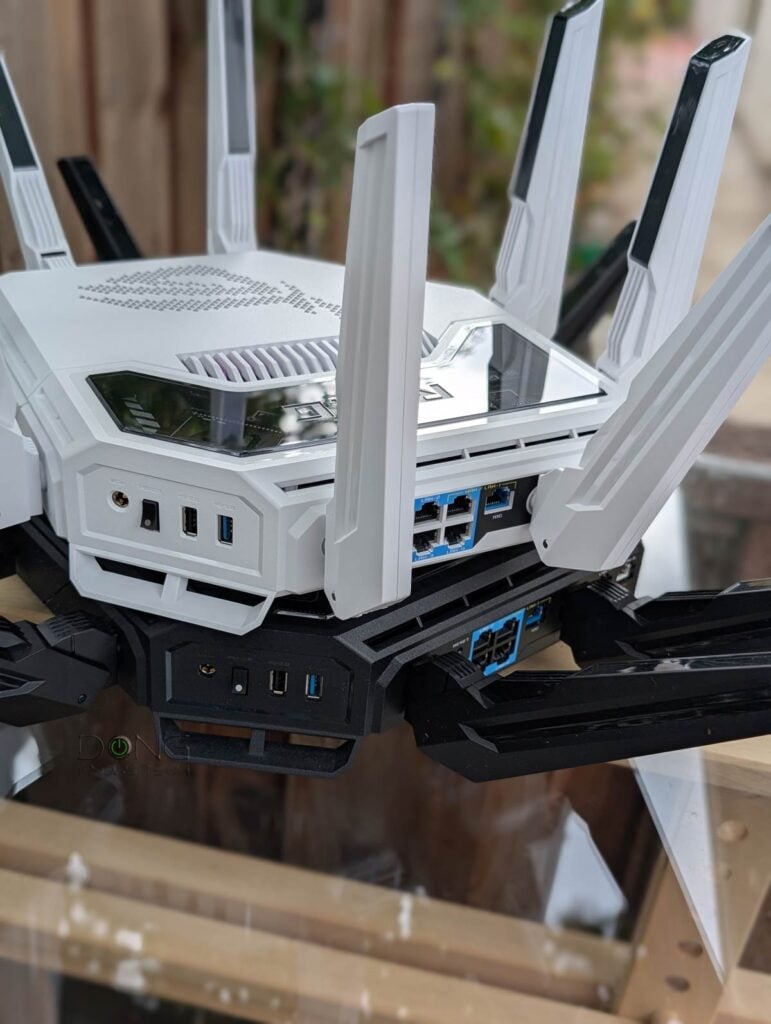
How to pick the best AiMesh Combos: The three rules
There are dozens, and counting, of AiMesh-enabled host devices (namely access points and Wi-Fi routers), ranging from Wi-Fi 5 to Wi-Fi 7, and even the upcoming Wi-Fi 8. While they all supposedly work together, certain combos are better than others. Some are outright no good.
If you’re looking to build an AiMesh system from scratch based on the current ASUS router you’re using, or about to get, it’s best to pick and choose them wisely.
ASUS hardware and AiMesh
The cabinet below contains existing ASUS routers for the US market that can be used as part of an AiMesh Wi-Fi system. Most are also available worldwide. Some other regions might have other models unavailable in the US and vice versa.
Extra: Current AiMesh broadcasters
AiMesh: Wi-Fi 5 (802.11ac) hardware
Most of these are legacy broadcasters that can’t run the latest version of ASUSWRT firmware.
- Tri-band: GT-AC5300, RT-AC5300, Lyra, and ZenWiFi AC.
- Dual-band: RP-AC1900, RT-AC1900, RT-AC1900P/U, RT-AC2900, RT-AC3100, RT-AC5300, RT-AC68P/R/RW/U/UF/W, GT-AC2600, Lyra Trio, Blue Cave, RT-AC86U, RT-AC88U, and possibly more.
AiMesh Wi-Fi 6/6E (802.11ax) hardware
These incomplete lists primarily include the latest broadcasters already covered on this website.
- Tri-band (Wi-Fi 6 and Wi-Fi 6E):
- Traditional tri-band (5GHz + 5GHz + 2.4GHz): GT-AX11000 / Pro, RT-AX92U, ZenWiFi XT8, ZenWiFi Pro XT12, ZenWiFi XT9, ROG Rapture GT6, and more.
- Wi-Fi 6E tri-band (6GHz + 5GHz +2.4Ghz): GT-AXE11000, ZenWiFi ET8, ZenWiFi Pro ET12, GT-AXE16000, RT-AX7800 and more.
- Dual-band (Wi-Fi 6): RT-AX88U / Pro, RT-AX89X, RT-AX3000 / RT-AX58U, RT-AX56U, ZenWiFi XD4, RT-AX86U/S/Pro, RT-AX82U, RT-AX68U, RP-AX56, GS-AX3000, GS-AX5400, ZenWiFi XD6, GT-AX6000, ZenWiFi AX Hybrid XP4, ROG Rapture GT6 and more.
AiMesh: Wi-Fi 7 (802.11be) hardware
- Quad-band: GT-BE98 Pro, ZenWiFi BQ16 Pro
- Tri-band: GT-BE19000AI, GS-BE1800, TUF-BE9400, RT-BE96U, ZenWiFi BT10, ZenWiFi BT8, ZenWiFi BT6, and more.
- Dual-band: TUF-BE6500, RT-BE58U, RT-BE88U | RT-BE86U | ZenWiFi BD4, and more.
AiMesh works by using one router as the primary node, with the rest functioning as satellite nodes to scale coverage. The primary router decides the features of your mesh.
Technically, you can arbitrarily use a combo of any broadcasters above to create a mesh system, and that may work to an extent. The point is, don’t do that. Instead, follow these tips to get the most out of your hardware.
For the most part, picking AiMesh hardware is similar to any mesh system.
AiMesh combo rules #1: Wired backhauling is the best
Like all home mesh systems, you should use wired backhauling. That’s when you use a network cable to connect the main router and a satellite unit.
Here are three reasons why wired backhauling is highly recommended:
- Wired backhauling allows for the best performance and reliability regardless of distance (cable length). In this case:
- You can daisy-chain the hardware units or use one or more unmanaged switches between them.
- Use CAT5e or higher-grade network cables for the backhaul links. A satellite unit’s bandwidth is limited by this link, which is generally either Gigabit or Multi-Gig, depending on the ports used to connect the hardware:
- A Gigabit wired backhaul will deliver any sub-Gigabit broadband connection in full.
- A 2.5Gbps Multi-Gig wired backhaul will deliver up to 2Gbps of broadband.
- A 10Gbps Multi-Gig wired backhaul will deliver the ultimate performance.
- Wired backhauling offers greater flexibility in hardware combos, allowing you to use routers of different models, tiers, or Wi-Fi standards, such as Wi-Fi 7 and Wi-Fi 6/6E. Keep the following in mind:
- With wired backhauling, you can use almost any AiMesh router combo without worrying about performance or reliability. Still, mixing hardware of two or more Wi-Fi generations apart, such as Wi-Fi 7 and Wi-Fi 5, will need special attention. More in rule #3 below.
- If you use Wi-Fi 7 hardware, the MLO feature is generally unnecessary in a fully wired setup, as it doesn’t significantly affect client connectivity, but it can be used for fronthaul to achieve the same effect as Smart Connect.
- Wired backhauling eliminates the need for expensive hardware with band-splitting. Specifically, you can pick:
Generally, if you’re looking to build the best-performing AiMesh (or any Wi-Fi) system, think about getting your home wired first. You can also consider a good MoCA connection when applicable.

AiMesh combo rules #2: Wi-Fi 7 or UNII-4-enabled tri-band Wi-Fi 6 hardware is best for a fully wireless setup
When wired backhauling is unavailable, which is often the case, consider Wi-Fi 6 or Wi-Fi 6E hardware with band-splitting or go entirely Wi-Fi 7. Specifically:
While dual-band hardware works in a wireless setup, due to signal loss, only 50% of the satellite unit’s bandwidth is available to clients.
Wi-Fi 7 hardware can use the MLO link as the backhaul, which is better than any dedicated backhaul band. However, in this case, you must use the same model (multiple units of the same router) or, at least, hardware units with the exact Wi-Fi specifications throughout the entire system.
It’s important to note that, regardless of the hardware, wireless backhauling will result in slower connection speeds at the satellite unit than at the router unit.
AiMesh wireless combo: Avoid mixing Wi-Fi standards
In a fully wireless system, it’s best to avoid using multiple Wi-Fi standards.
Mixing Wi-Fi 7, Wi-Fi 6/6E, and especially Wi-Fi 5 will be problematic. In this case, the nodes will not reliably link to each other, and the higher-standard hardware will have to work in compatibility mode, which is slow. The point is that the result will vary, but there’s no scenario where it’ll be good.
While Wi-Fi 6 and 6E are technically the same standard, mixing their hardware means the 6GHz band is either unavailable or not used across the entire system.
Again, avoid mixing AiMesh hardware of different Wi-Fi standards in a fully wireless setup. Period.
AiMesh wireless combo: Don’t count on the 6GHz band
It’s important to note that all Wi-Fi 6E routers always have at least three bands (tri-band), but none have an extra band dedicated to backhauling—you need all three to host clients.
Additionally, the 6GHz band has a short range and can’t work reliably over long distances or through walls. (All that marketing hype about the band’s range is false.)
That said, if you use Wi-Fi 6E AiMesh routers, treat them the same as dual-band Wi-Fi 6 (or 5) hardware—use them via wired backhauling or expect reduced performance.
The takeaway is this: Don’t count on the 6GHz unless you live in a small or open space.
AiMesh wireless combo: Use Wi-Fi 7 routers of the same model
If you use Wi-Fi 7 hardware in a wireless setup, again, it’s best to use the same hardware unit throughout, which is automatically the case if you opt for a ZenWiFi pack.
If you want to build a system from standalone models, you can use multiple units of any of these routers, but not a mix of different models.
Note: For optimal performance, always arrange the hardware in a star topology in a wireless setup, regardless of the Wi-Fi standard.


AiMesh combo rules #3: Be smart about mixing hardware
It’s generally safest, in terms of performance and reliability, to use the same routers across the entire system. However, mixing a high-end primary router with affordable satellites can be a financially savvy way to have an effective AiMesh system.
In this case, be aware of some inherent issues with using mixed hardware. Specifically, the following:
- Only shared features apply: If you use a higher-end router with lower-end satellites, the router’s features, such as Guest Wi-Fi (or SDN virtual SSIDs), might not be available at the satellite. Sometimes, turning these features on can cause the system to crash.
- The system’s base Wi-Fi grade is required: you need to use the (high-end) primary with settings supported by the lowest-end satellite. If you use performance-favored settings that are not available to a satellite, the system may disconnect. Generally, use the Auto setting to be on the safe side.
- Unexpected bugs: Mixing routers with different Wi-Fi tiers, standards, or band counts (Dual-band vs. tri-band vs. Quad-band) is always tricky and can cause unexpected issues.
The following are some tips for mixing AiMesh hardware.
1. Use wired backhauling when possible
As mentioned above, using networking cables to link Wi-Fi broadcasters is the only way to get the best-performing mesh system. It also gives you more flexibility in hardware combos.
Generally, in a mixed hardware setup with wired backhauling, each broadcaster operates at its own capacity (Wi-Fi standard and tier), and seamless handoffs between them are hit-or-miss.
A mix of wired and wireless backhaul is still better than a complete wireless solution. In this case, the primary router unit should be wired to the first node, but you can also wire only the nodes together.
AiMesh combo with wired backhauling: Consider the AP mode
With wired backhauling, you can use standard access point (AP) mode for any satellite unit.
While this setup will not give you a true mesh system—you can’t control the AP’s Wi-Fi settings via the primary router—it’ll deliver excellent performance, reliability, and greater control over the hardware. Specifically:
- You can fully control the satellite, including additional features available in AP mode, such as in-depth Wi-Fi settings (channel width, security, etc.), USB-related features, lighting, and more.
- If your primary router has fewer bands than the satellite, you can use all of the satellite’s bands, which is generally not the case in the AiMesh mode.
- You can use a third-party router (or AP) or a non-AiMesh ASUS router as the satellite.
Using the satellite units in the AP role is far more reliable than using them as wireless AiMesh nodes in my trial. So, consider that an alternative when you have issues with a pure AiMesh mixed-hardware setup.
2. Pick the right primary node and appropriate settings
In an AiMesh system, the primary router determines the features of your network. Consequently, keep the following order in mind for the hardware for this role:
- It should be the latest router in terms of Wi-Fi standards, features, and firmware revisions.
- It should be the router with the highest Wi-Fi tier, measured in terms of streams (4×4, 3×3, 2×2, etc.).
- It should be the router with the most bands and the highest processing power. So, pick quad-band over tri-band and tri-band over dual-band.
If you have a combo in which none of the routers meet all three above, pick the primary unit based on your needs and keep in mind that not everything will work as expected.
As for the Wi-Fi settings, make sure the primary router meets the lowest-spec satellite’s requirements. For example:
- In Wi-Fi 7, avoid using MLO and other latest features if not all your satellites are Wi-Fi 7 and have the same number of bands.
- In Wi-Fi 6, avoid the 160MHz or UNII-4 if any of the satellites only support 80MHz or do not support this portion of the 5GHz band.
- When mixing a router of a newer Wi-Fi standard (such as Wi-Fi 6) with satellites of an older standard (such as Wi-Fi 5), use the latest hardware in compatibility mode. (Mixing Wi-Fi standards is always problematic, especially with wireless backhauling.)
- Use WPA/WPA2 or WPA2/WPA3 as the security method.
3. Pick the proper hardware for the satellite nodes
In an AiMesh setup, you generally have little or no control over the satellite nodes’ features or settings. They only extend the network by providing additional Wi-Fi coverage or network ports.
There are two scenarios: wired and wireless backhauling. For wired backhauling, it’s best to use hardware that without band splitting throughout.
Keep the following in mind when mixing hardware in an AiMesh combo, especially with wireless backhauling:
- Use the primary router and satellite of the same Wi-Fi standards and tier(•). If that’s not an option, pick satellites with the same Wi-Fi standard (and tier) as the router’s backhaul band (5GHz).
- When mixing tri-band (traditional or the new Wi-Fi 6E) and dual-band hardware, we have two scenarios:
- If you use a tri-band primary router, its third band is unavailable to a dual-band satellite.
- If you use a dual-band primary router, a tri-band satellite’s extra band is not accessible (not used) or, in some rare cases, is available as an open SSID.
- Mixing tri-band Wi-Fi 6 and tri/quad-band Wi-Fi 6E hardware: Consider the primary router’s third band as the management band. However, this combo is generally problematic in a wireless setup.
- Avoid mixing Wi-Fi 7 and older standards.
ASUS AiMesh combo: Bugs and firmware updates
Since there are so many possible AiMesh combos, mixing hardware, even when you do that right, will likely result in unexpected bugs. That is especially true when you use a fully wireless setup, and after a firmware update.
ASUS hardware and firmware updates
Considering the vast number of hardware options—virtually all ASUS Wi-Fi 6 and newer routers support AiMesh, and you can theoretically combine any two or more of them into a Wi-Fi system—firmware updates have proven to be a tricky business.
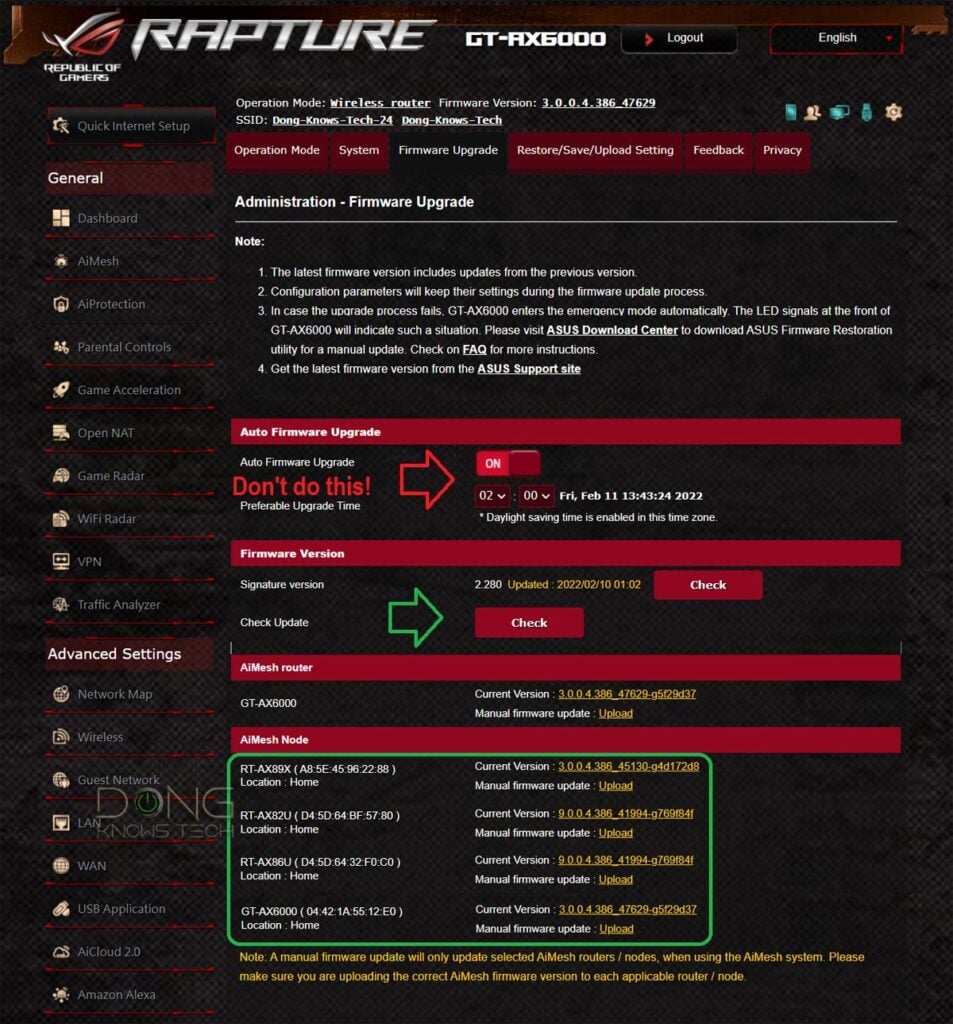
Generally, it takes ASUS about 6 months to stabilize the software after a major release. When it comes to updating—especially in an AiMesh setup of mixed hardware units using wireless backhauling—keep the following three items in mind:
- Avoid the initial major release: This is the first firmware version of a model whose middle three digits change, such as from 384 to 386 or from 386 to 388, especially from 3.0.0.4 to 3.0.0.6. Generally, things start to be good with the first minor update to a major firmware release.
- Avoid using Auto-Update for firmware: Instead of letting the hardware update itself, you should update the firmware when you see fit. (It’s OK to choose Auto-Update for the security-only updates when that’s an option.)
- Version consistency (in a mesh system): Generally, it is best to use the firmware version of the same major release across all AiMesh members. (Mixing hardware of different major releases can produce mixed results, though things get better with version 388 and newer.)
- Reset and start anew: If, after a major update, things don’t seem right, it’s recommended that you back up your settings to a file, reset the hardware, and set it up from scratch. Then, if need be, restore the settings. Alternatively, go back to the previous (and issue-free) version and wait until a newer release.
The point is to tread lightly when upgrading firmware if you have a system of mixed hardware. The more differences in Wi-Fi standards and tiers within your combo, the more potential issues you might run into.
To minimize issues, tread lightly with firmware updates and setting customization. Avoid using the ASUS Router mobile app and opt for the web user interface instead.
The takeaway
With many hardware options and regular firmware updates, AiMesh has been both reliable and unreliable depending on the specific combo. To be safe, avoid using too many different models with widely different hardware specs in the same system, and keep wired backhauling as the go-to solution when you run into issues.
In any case, AiMesh is one of the few mesh approaches that allow for a flexible hardware combo. Consequently, picking the correct hardware combination is the first important step. The next step is to configure them correctly.