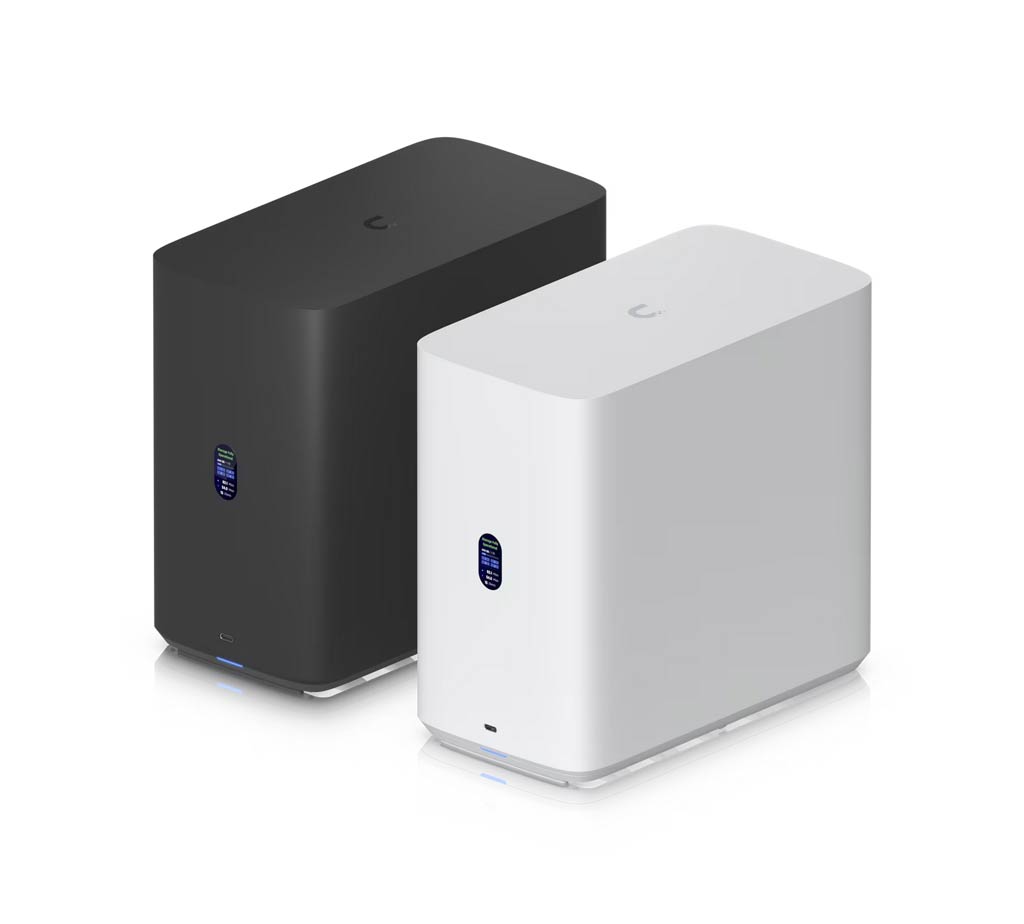
Nearly half a year after its announcement, Ubiquiti’s UNAS 4 is finally available for purchase today.
In more ways than one, it’s the larger version of the UNAS 2, double in physical size and capacity. However, the four drive bays and two NVMe slots mean it is fundamentally better in terms of performance and data protection.
This quick preview will help you pick between the two. No matter which you get, keep in mind that these are storage-first servers: they don’t offer any high-level applications beyond network-based storage sharing and backups.
Pros
Practical, design with PoE-powered and 2.5Gbps port, PoE+++ injector included
Four drive bay with RAID 5 support, dual NVMe slots for SSD caching
Standard user management with Active Directory/LDAP integration and other advanced storage-related features, including built-in support for shadow copies (snapshot)
Cons
No high-level NAS-based applications, such as media streaming, PC-less downloads, or virtual machines
Zero upgradability, most functions have limited configurability, a UI account is required for advanced features
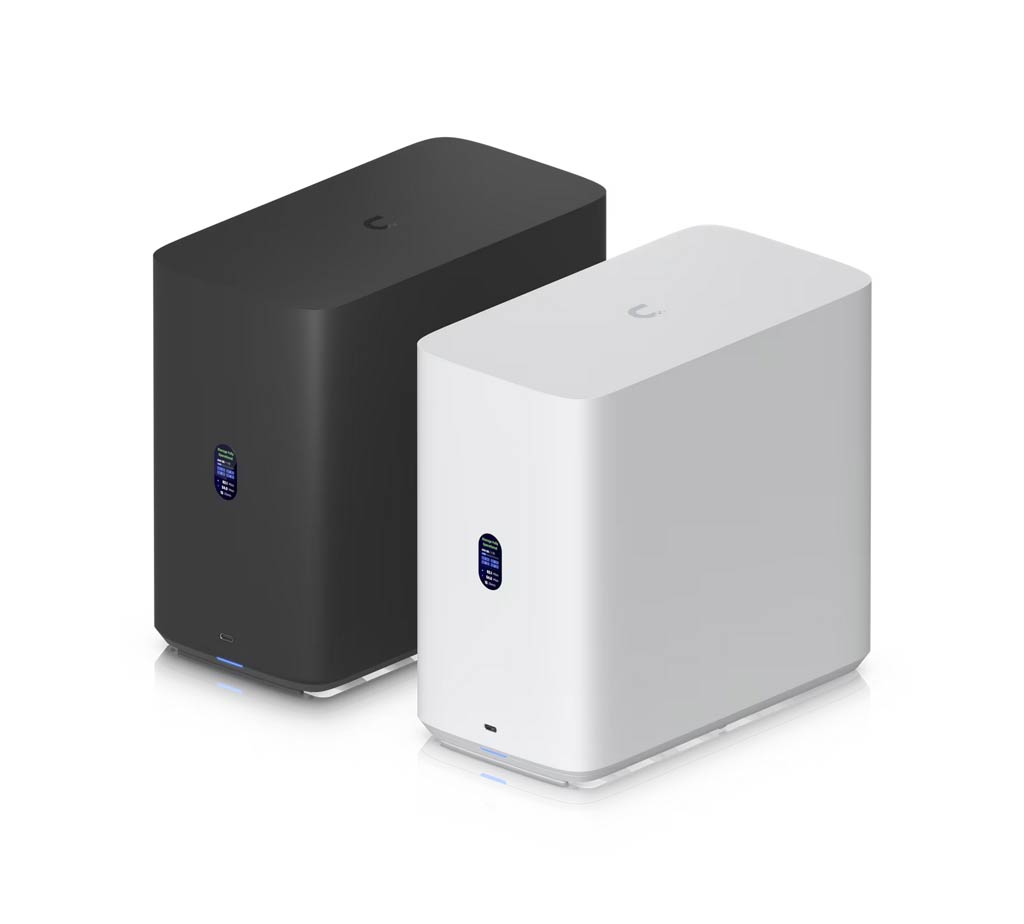
Ubiquiti UNAS 4: An advanced and unique storage-only server
Like the UNAS 2, the UNAS 4 is part of Ubiquiti’s second-generation network-attached storage servers designed for general consumers.
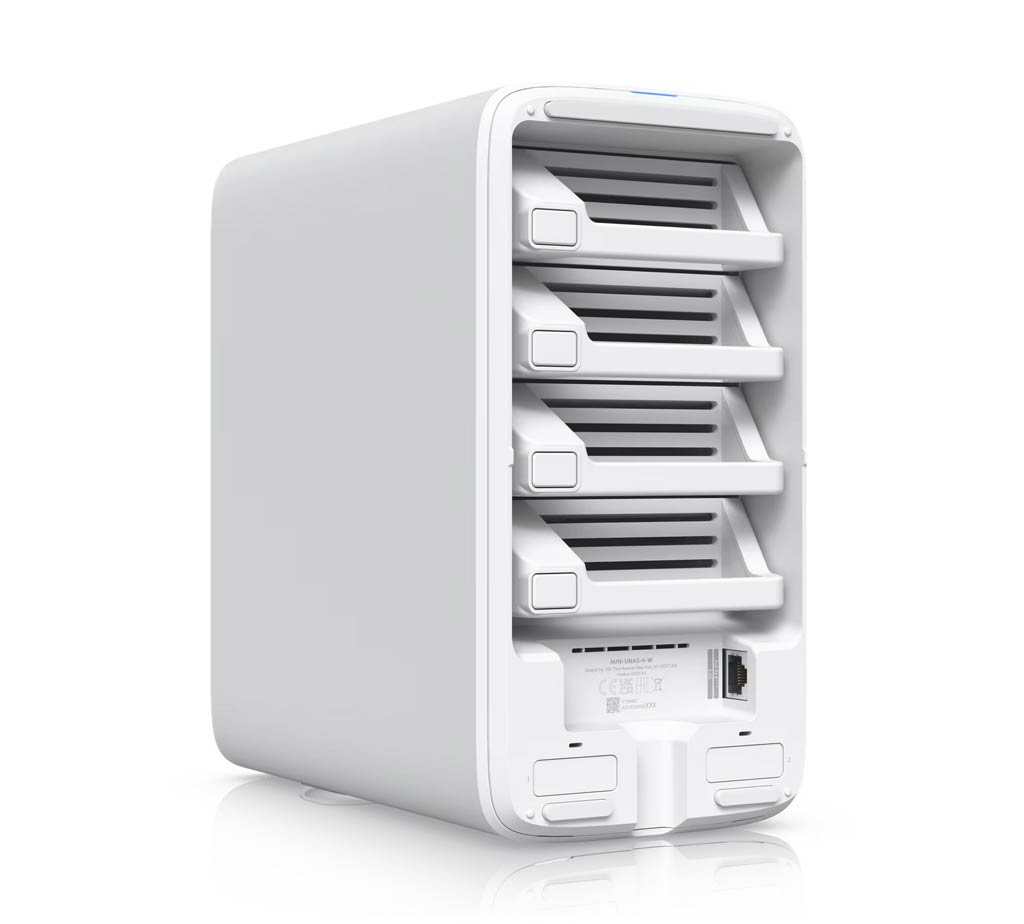
It’s a desktop server with four internal drive bays to host up to four standard SATA drives. Additionally, it has two M.2 slots that share the same tray design as the UCG-Max or UCG-Fiber, allowing two NVMe SSDs to be used optionally as cache.
What makes the UNAS 4 unique is that it’s the first 4-bay server that can be powered over a PoE connection, giving users the flexibility to place it virtually anywhere a network cable can reach without worrying about a power socket or additional wires.
On this front, it’s worth noting that the UNAS 4 requires a 90W PoE+++ power input, which exceeds the power output of most existing PoE switches. The good news is that it comes with an injector.
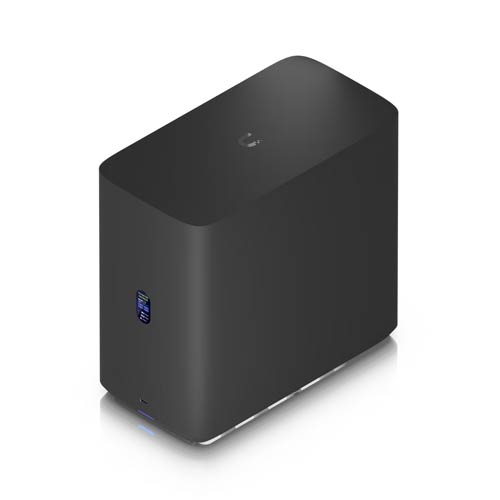
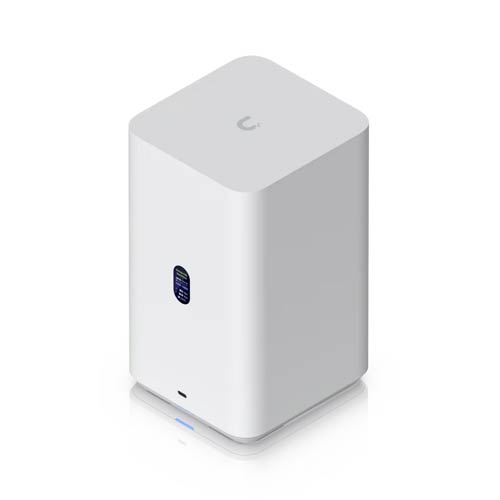
Overall, the UNAS 4 is a larger and more powerful version of the UNAS 2. Still, aside from physical size and storage capacity, the two are very similar. The table below shows the hardware specs of the two servers.
Ubiquiti UNAS 4 vs. UNAS 2: Hardware specifications
 |
 |
|
|---|---|---|
| Model | UNAS 4 | UNAS 2 |
| Color Options | Black: UNAS-4-B White: UNAS-4-W |
Black: UNAS-2-B White: UNAS-2-W |
| CPU | Quad-Core ARM Cortex-A55 at 1.7 GHz | |
| Memory | 4 GB | |
| Display | 1.47″ color LCM | |
| Dimensions | 246 x 129 x 224.5 mm (9.7 x 5.1 x 8.8″) |
135 x 129 x 223.7 mm (5.3 x 5.1 x 8.8″) |
| Weight | 2.6 kg (5.7 lb) | 1.3 kg (2.85 lb) |
| Storage Capacity | 4x 3.5″ drive bays (supporting all SATA drives) 2x M.2 NVMe bays (2TB max, caching only) |
2x 3.5″ drive bays (3.5″ HDD only) |
| Network Port | 1x 2.5 GbE RJ45 Multi-Gig PoE+++ | 1x 2.5 GbE RJ45 Multi-Gig PoE++ |
| Expansion Port | 1x USB-C (USB 3.2 Gen 1) | |
| Power Redundancy | No | |
| Design | Desktop | |
| Max. Power Budget for Drives | 80W (4.5W max for USB-C) |
52W (4.5W max for USB-C) |
| Max. Power Consumption | 90W | 60W |
| Power Method | PoE+++ | PoE++ |
| Power Supply | 90W PoE+++ injector (Included) |
60W PoE++ injector (Included) |
| Ambient Operating Temperature | -5 to 40° C (23 to 104° F) | |
| Ambient Operating Humidity | 10 to 90% noncondensing | |
| Warranty | 2 years | |
| US Launch Price (Compare at UI store!) |
$379 | $199 |
Ubiquiti UNAS 4: A single-app console running UniFi Drive
Like all other UNAS models, the UNAS 4 is, in essence, a single-app UniFi console that shares the same web user interface, settings, and management as any UniFi console.
UniFi console in a nutshell
A UniFi console always runs the UniFi OS plus one or more UniFi applications, with Network being the most significant—it’s the primary app.
However, not every UniFi console is equipped with this app, and those that do are called UniFi “Cloud Gateways” (UCGs), including the UniFi “Dream” series, such as Dream Machine (UDM) or Dream Wall (UDW)—they are all UniFi ” routers” if you prefer to call them that way.
A few UCGs have just this Network app—they are Network-only UniFi consoles. Most UCGs can host additional applications to qualify as a multi-app, Network UniFi consoles.
All Network UniFi consoles share the same basic features and settings. However, their capacities—specifically the number, breadth, and depth of UniFi applications they can handle simultaneously—vary depending on the hardware specifications.
The following are the current UniFi applications, with the first six belonging to the original UniFi Application Suite:
- Network (primary): This application enables the hardware to function as an advanced router, thereby qualifying it as a “UniFi Cloud Gateway”. This app handles all network-related aspects, including security, firewall, access points, Wi-Fi system management, and much more. On a UCG, the Network app is the default and can’t be uninstalled.
- Protect: The support for IP cameras as an advanced surveillance system, including a built-in UniFi Network Video Recorder (UNVR) of a UniFi console. Protect is the default app of a standalone UNVR. Generally, a standalone UNVR is a multi-app, non-Network console that can also host the Access and InnerSpace applications, but it’s often classified as a “Protect-only UniFi console”.
- Talk: A locally hosted Voice-over-IP system.
- Access: A “platform designed for Access Control Systems”—per Ubiquiti. Examples include door-related security IoT devices, such as doorbells, key fobs, locks, etc.
- Connect: Application that manages digital signage and EV Stations
- InnerSpace: A visualization tool that allows users to map out their UniFi network by uploading floor plans, drawing walls, etc., for the deployment of UniFi devices.
- Drive: The latest app that turns a UniFi console into a UniFi network-attached storage (NAS) server, known as a UNAS. Generally, a UNAS server is a single-app non-Network UniFi console—it’s a “Drive-only UniFi console”.
Each of these applications is a world in itself, with various in-depth customizations, and some require UniFi devices to deliver their intended purposes.
Powered by the UniFi Drive application, currently at version 4, the UNAS 4 also shares the same storage features as the rest of the UNAS family. While the UniFi drive app is robust for storage, it’s a single app that can’t compare to full-scale NAS operating systems found on other NAS servers, such as Synology or UGREEEN, which can run many applications.
That said, here are three things you can expect from the UNAS 4:
- Simple setup process, which is similar to that of any UniFi console:
- Install the SATA drives into the trays, then attach the trays to the server’s drive bay on its underside. You need at least one drive to start, though it’s best to use all four drives of the same capacity and type (SSDs vs. HDDs).
- Connect the server to the existing network via the included PoE injector. Or if you have a PoE+++ switch, you can use any port that delivers 90W.
- Proceed with the initial setup process:
- Via a web user interface: From a connected computer, open a browser and enter the server’s IP address (provided by the router).
- Via the UniFi mobile app: Run the app on your phone, stand next to the server, and the app will detect the server almost instantly, just like any other UniFi device.
- Complete with creating a storage volume using one of the supported RAID configurations.
- Proceed with creating shared folders, user accounts, and configuration of other features. The server supports standard network shared drives and features remote data sharing over the Internet via share links for those with a UniFi Identity account.
- A handful of storage-based features:
- Snapshot: You can store up to 256 versions of each shared drive, taking snapshots as often as once a day to protect data against unexpected changes. This feature is similar to Synology’s Snapshot and Replication, but less robust in terms of frequency and the number of snapshots that can be taken.
- Backup: The system can back up data of shared drives to another UNAS server, a standard SMB server, or a cloud service, such as Google Drive or OneDrive. Again, the highest frequency at which you can schedule backups is once a day.
- Support for Time Machine backup: You add File Services & Time Machine Credentials to a user account, allowing them to use the shared drives on the UNAS for Time Machine backups on their Mac when it’s connected to the same network.
- Directory services, such as Active Directory or LDAP, integration: You can integrate UNAS 2 with an AD/LDAP server, letting the domain controller handle access to shared drives seamlessly.
- No integration with an existing UniFi Cloud Gateway: As a single-app UniFi console, the UNAS 4 works the same way on a network hosted by a third-party router or by a UniFi Cloud Gateway. In the latter case, the two don’t integrate. For example, there’s no way to make it host the storage of the UniFi Protect app or any other app within the UniFi suite.
It’s also worth noting that while the UNAS 4 can work independently from Ubiquiti, if you want to get the most out of it, including ease of use in data sharing, a UI account is generally required.


The takeaway
At its core, you can expect the UNAS 4 to be the same as the UNAS 2, but with higher capacity. Both servers’ performance is limited by their 2.5Gbps network ports, though the former is expected to deliver better performance thanks to the faster RAID, especially when enhanced by the NVMe caching option.
If you’re on the market for a storage-first NAS server, the UNAS 4 is defenitely worth considering,g and its PoE-powered feature can be a game changer in many situations. Check it out today!