
At the request of many, this post, a supplement to the one detailing the UniFi Network, provides a quick yet comprehensive buying guide for UniFi Cloud Gateways.
When through, you’ll be able to pick the right UniFi “router” for your needs. It also includes tips, upgrades, or replacement if you already have an existing gateway that also works as a UniFi Network Video Recorder (UNVR).
Before continuing, keep in mind that while a UniFi system, with appropriate hardware, can function effectively in a fully wireless environment, many of its features work best in a wired home or when you’re willing to run one or two network cables to connect the hardware units.
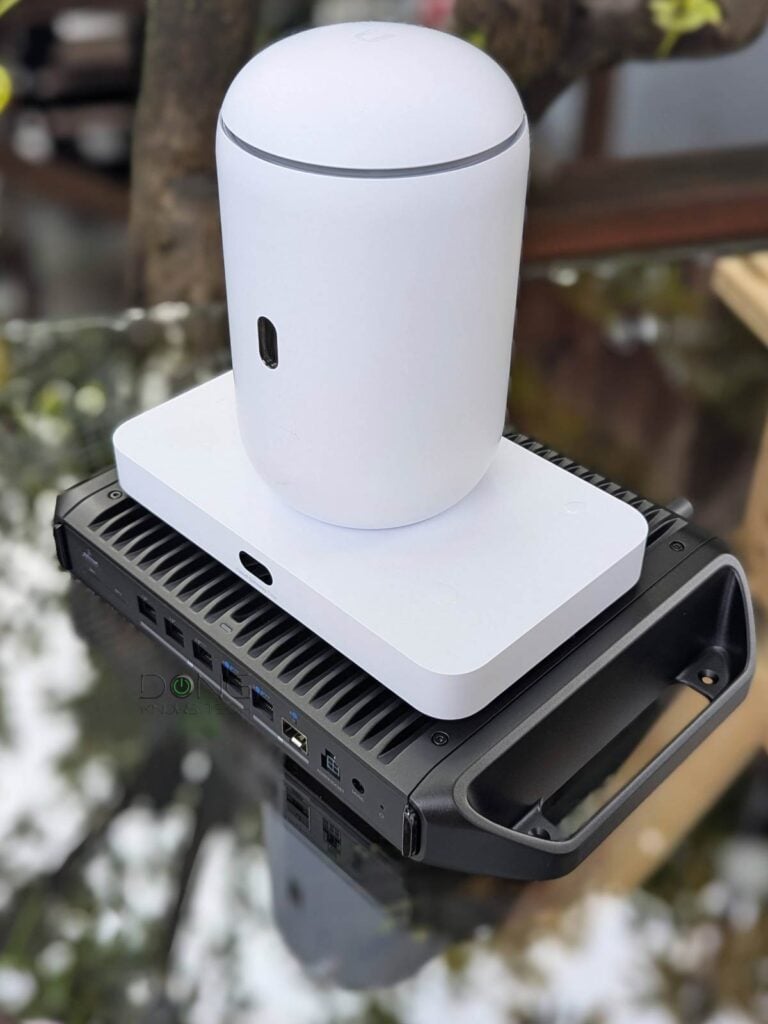
UniFi Cloud Gateways: The complete guide on picking or replacing a Ubiquiti “router”
Each UniFi Cloud Gateway (UCG) is much more than a standard router. As UniFi consoles powered by UniFi OS, most of these hardware units can run multiple applications simultaneously, similar to a computer.
To be clear, there are different types of UniFi hardware, called controllers, that share the same hardware design as UniFi Cloud Gateways, but can’t work independently. We’re not talking about them. You want to get a UniFi console that can at least run the Network application, the primary app in the UniFi ecosystem that turns the hardware into a “router”.
Tip
Ubiquiti’s naming convention can be confusing. Here’s a way to make it a bit easier to know which is which, in most cases:
- UniFi consoles: Powered by the UniFi OS and are often known as UniFi Cloud Gateway, or UCG. These consoles always support at least the Network application and often more. The key here is the “Cloud” notion. Members of the UniFi Dream series, such as UDR7, UDM-SE, or UDM Pro Max, are all UniFi Cloud Gateways.
- UniFi controller (legacy): A controller generally has a single function. None of them has the “Cloud” or “Dream” notion in the name. A controller doesn’t have built-in UniFi OS and requires a separate device, such as the Cloud Key, to provide the UniFi OS and apps for it to function.
Still, you need to pay close attention to avoid getting the wrong device, since many of these controllers and consoles look strikingly similar.
And for most home users, this Network app is all they need. However, it never hurts to get a console that can run multiple apps—other than the Network app, the rest are not installed by default and can be uninstalled. Most UniFi Cloud Gateways can run multiple apps anyway.
Apart from Network, the second app worth considering for the home (and SMB) is UniFi Protect, which turns the console into a UniFi Network Video Recorder. The post linked below details this unique approach to home camera-based security.
Since all UniFi Cloud Gateways share the same Network application mentioned above, no matter which one you pick, you will have the same networking experience. That said, the first thing to consider when buying hardware is its size. The device has to fit physically.
UniFi Cloud Gateways’ physical design: Rackmount vs. desktop
UniFi Cloud Gateways come in different shapes and sizes.
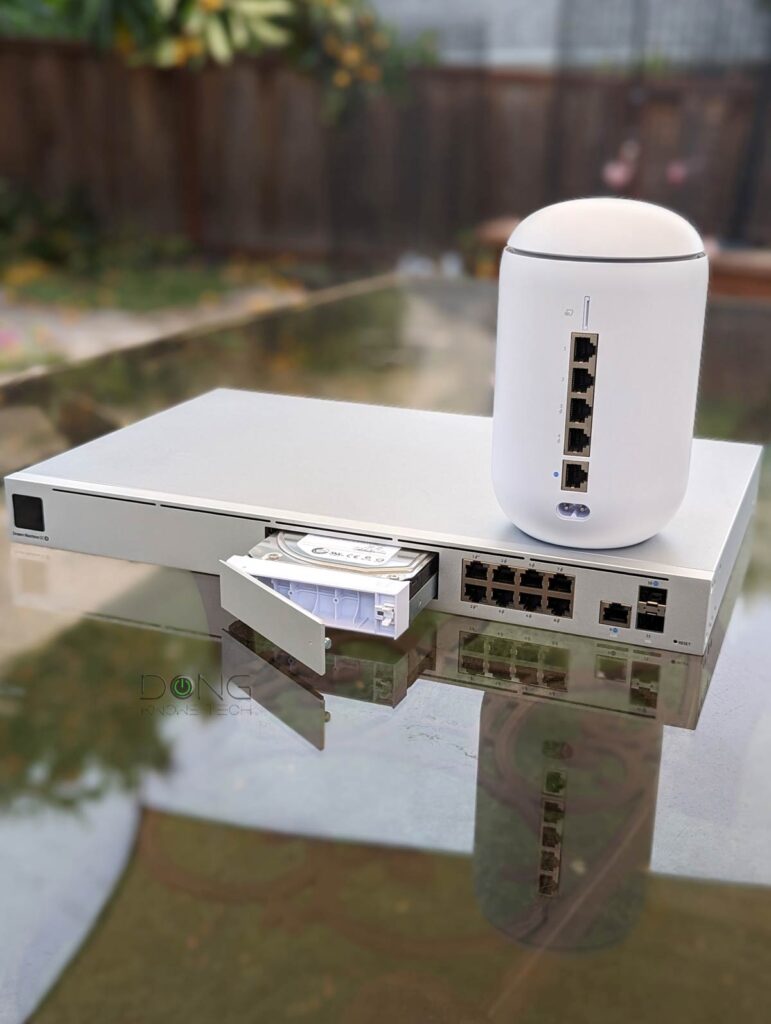
Generally, for a business network, you can choose the full-scale rackmount design. For a home, there are more compact options for desktop placement or wall mounting—pick one that meets your placement and “spouse approval” requirements.
Cost and capacity aside, a larger gateway generally has more processing power or storage space. So, if you want to have the best performance and enough power to run multiple apps, that’s also a reason to get a rackmount or a large unit.
UniFi Cloud Gateways: Wi-Fi or not Wi-Fi
After the physical size, the second thing to consider is Wi-Fi. Some UniFi Cloud Gateways have built-in access points, similar to Wi-Fi routers. Others don’t—they are non-Wi-Fi routers.
However, on this Wi-Fi front, keep the following in mind:
- All UniFi Cloud Gateways can host multiple UniFi access points to add Wi-Fi or extend coverage.
- Once adopted, these add-on APs become part of the system and function as if they were integral to the gateway itself.
- In a UniFi network, you can mix access points of different Wi-Fi standards and performance tiers, and they will work well together.
The point is that regardless of which UniFi Cloud Gateway you have, you can always get one or a few UniFi access points to build a robust Wi-Fi system of your liking.

Still, if you don’t need Wi-Fi, it’s best to go with a non-Wi-Fi gateway.
On the other hand, if you want or need Wi-Fi, consider these main scenarios:
- If your home only requires a single Wi-Fi host unit (access point), then:
- If you can place the “router” at the optimal location for best coverage, then get a single Wi-Fi-integrated console.
- If your home is wired with network cabling, it’s best to get a non-Wi-Fi console and a separate UniFi access point (or use the UX7 in access point mode). This way, you can place the access point where it delivers the best coverage.
- If your home requires more than one Wi-Fi access point, then:
- If you need a fully wireless setup, consider using a Wi-Fi-integrated console, such as the UDR7, and then the UX7 or U7 Mesh as a wireless mesh point. I described this combo in detail in the UX7’s review.
- If your home is already wired, consider a non-Wi-Fi console (compact or large-scale), then add one or a few UniFi access points to build your Wi-Fi system.
- For extra requirements, such as rugged, outdoors, or 5G:
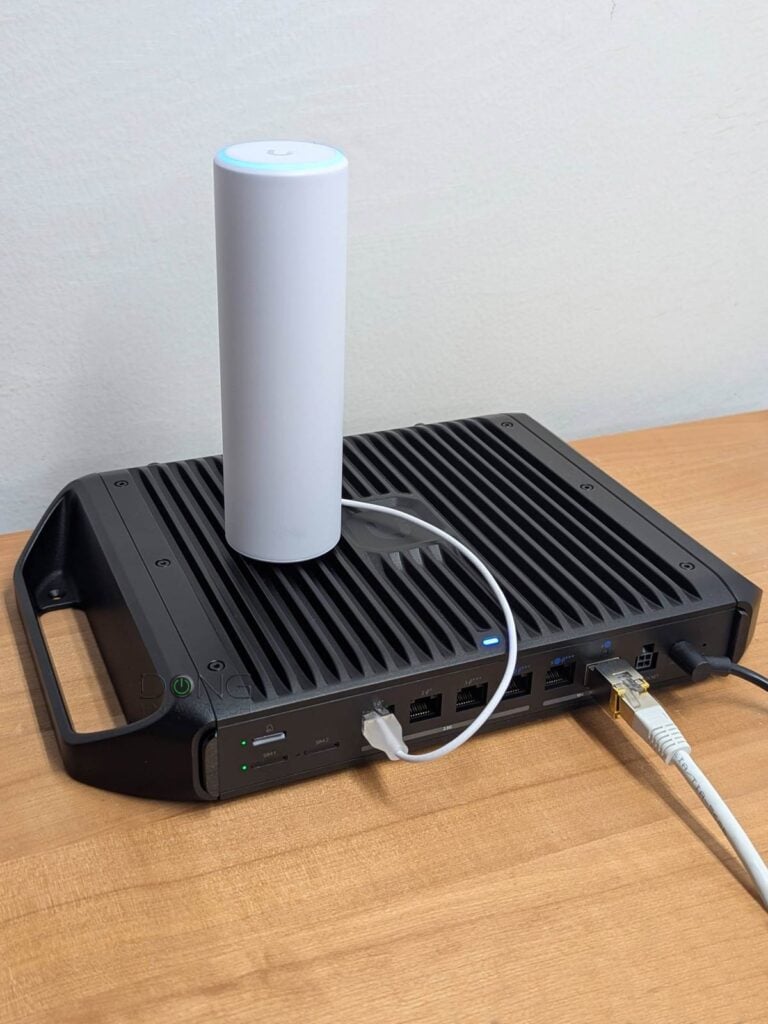
- If you need a rugged unit that can handle the elements, pick the UCG-Industrial as the primary router. Afterward, you can use any standard UniFi access point for a wired setup or wireless setup, depending on the needs. Additionally, outdoor access points will come in handy.
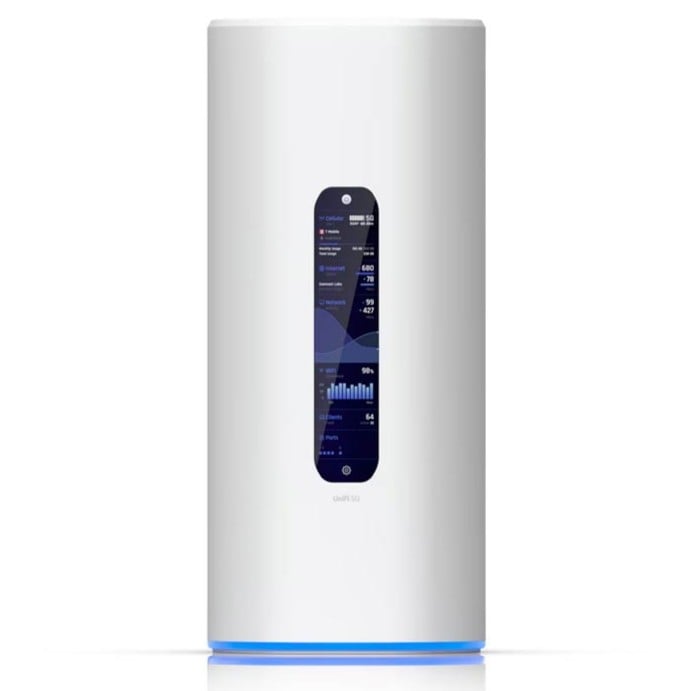
- If you need 5G as the primary or backup Internet connection, consider the UniFi 5G Max (or its outdoor version) as an add-on to any existing UniFi network. Alternatively, the Dream Router 5G Max has an internal 5G cellular modem with dual-SIM support.
In most cases, it’s best to get your home wired and start with a non-Wi-Fi console—you’ll get flexibility in hardware placement.

While generally, it’s true that a non-Wi-Fi router won’t become “dated” when there’s a significant change on the Wi-Fi front, such as the release of a new standard or better access point options, that doesn’t apply to UniFi Cloud Gateways.
More on UniFi Cloud Gateways’ Wi-Fi: Flexible SSID assignment and wired vs. mesh uplink options
That’s because with a gateway that has a built-in Wi-Fi access point, you can always turn it off or simply opt not to use it by assigning it no SSID, effectively rendering the gateway non-Wi-Fi.
The point is that to save costs, you can get a UniFi router with dated Wi-Fi specs, such as the UDM or UDR, and use it as the host for modern Wi-Fi 7 UniFi access points. In any case, as mentioned above, the UniFi Network application—whose latest version 10.2 is available on all UniFi Cloud Gateways, including the UDM—can gracefully handle access points with mixed Wi-Fi standards and tiers.
Another point to note is that UniFi access points can generally operate in the wireless (mesh) mode. However, considering most of them use PoE as the (only) power method and don’t include a PoE injector (power adapter), it’s kind of pointless not to use the network cable as the wired uplink—since you’d also need to use it to power the hardware anyway.
But if you want to, you can also buy a PoE power adapter that matches the AP’s PoE standard to use it in a mesh. Currently, the U7 Mesh is one of a few UniFi access points designed specifically for the mesh mode—it comes with all necessary accessories for this mode. Additionally, the UX7 is another viable option for a fully wireless (mesh) UniFi setup.
UniFi Cloud Gateways: Inflexible in operation roles
While a UniFi Cloud Gateway gives you lots of in-depth customization, it’s not as flexible in terms of operation role as other brands, such as ASUS AiMesh. On this front, two important things to note:
- Most UniFi Cloud Gateways can only work as the primary unit (the router) for a Wi-Fi system. They can’t work as an access point or a Wi-Fi extender (mesh point). In other words, you can’t use the.m as a satellite unit in a Wi-Fi system. For example, if you’re using the UDR and now get the UDR7 as an upgrade, you can’t repurpose the UDR as a satellite unit to extend Wi-Fi coverage. Needless to say, you cannot use multiple UDR7 units to create a Wi-Fi system either.
- Even the few consoles that can serve in different roles—such as the UX7, which can function as an access point or mesh point—can’t change their role once they’ve been set up as a router. As a result, there’s no way to use an entire UniFi Wi-Fi system in the access point mode.
The takeaway here is that you should use a UniFi system only when you do not need to keep the ISP-supplied gateway unit or an existing router. Otherwise, double NAT is the only outcome.
Tip
The access point mode can apply to more than a single hardware unit.
In many Wi-Fi (mesh) systems, you can put the primary unit (the router) into access point mode. In this mode, the entire system extends the network hosted by another router while still allowing you to manage the Wi-Fi settings of all mesh nodes via the primary unit’s management interface.
However, this AP-mode-as-a-system is not available in all brands of Wi-Fi systems. Some canned systems, such as Google Nest Wifi, only have this AP mode when you use each hardware unit individually. Among advanced DIY Wi-Fi mesh system approaches, UniFi is an example that doesn’t support the AP mode.
To be clear, this lack of hardware role flexibility is not necessarily a drawback. To have a truly advanced network, you need a single-NAT setup—the UniFi console must be the sole router of your system. Additionally, wired backhauling is generally the only way to achieve optimal performance and reliable Wi-Fi coverage.
So, if you’re thinking of going the UniFi way, a few things to consider:
- A must-do: Get only the terminal device, such as a cable modem or a fiber-optic ONT from your Internet provider, not a gateway unit. (Some gateways can be turned into a modem via the bridge mode.)
- Recommended (especially when you need multiple Wi-Fi access points): Get your home wired with network cables or use the latest MoCA adapters when applicable.
- If you must go with a full mesh configuration, as mentioned above, the U7 Mesh and UX7 are currently the only viable options for the satellites.
UniFi Cloud Gateways: Tips on hardware upgrade or replacement
As mentioned above, all UniFi Cloud Gateways can work interchangeably as “routers”. That is especially true when they use the same or similar versions of the UniFi OS and Network app.
That said, if you use only the Network app, the process of replacing the current unit with another one is simple:
- Back up the current console’s settings to a file (or to Ubiquiti’s cloud if you use a UI account) and turn it off. To do this, open the web-based user interface, then navigate to Settings (the cogwheel) -> Control Plane -> Backups
- During the setup process for the replacement gateway, select the option to restore it using the backup file created in #1.
After that, you’ll note that most of the settings from the old console will be carried over to the new one. In my experience, unless you replace it with the same model, some of the previous settings might need to be adjusted for them to work properly or at all.
The discrepancy varies depending on how different the new UniFi console is from the one it replaces. However, overall, the following often require some attention:
- VPN server configuration
- Dynamic DNS settings
- Certain advanced port configuration and WAN settings
In any case, after the replacement, it is never a bad idea to check that everything is in order. In all cases, when possible, it’s best to update the hardware to the latest firmware before the process.
On the other hand, if you also use the Protect App, which turns the UniFi Cloud Gateway into a UNVR, replacing it with a different model can be straightforward or tricky:
If you don’t care about the existing recording, all you have to do is make sure your new gateway has storage space for the cameras. After that, restore it following the steps mentioned above. If you have an old camera model, you might need to reset it and re-add it to the system. And that’s it.


However, if you want to keep the existing recordings, that’s generally only possible if the two gateways share what I call the UNVR Compatibility, specifically:
- You move to a gateway that uses the same type of media for storage space as the current one, and
- The number of supported cameras of the replacement gateway is the same or higher than that of the one it replaces, and
- You keep the same storage device.
The table below will give you some quick pointers on which UniFi Cloud Gateway to get based on their ports, wired/wireless bandwdith and number of supported cameras. It’ll also help you find the replacement gateway if you want to keep your existing UniFi Protect recordings.
| Model Name | Network Ports and PoE |
Max Wired Bandwdith | Max Wi-Fi Bandwidth | Camera Support and Storage Type |
UNVR Compatibility (within common UniFi Protect-supported cameras) |
Notes | |
 |
Dream Router 5G Max (UDR-5G-Max) |
1x 10G SFP+, 4x 2.5 GbE (1x PoE) |
2.5Gbps | Tri-band BE11000 | (5) HD (2) 2K (1) 4K microSD |
Self, UDR, UDR7, UCG-Industrial (compare specs and costs) |
Desktop design with built-in 5G cellular modem |
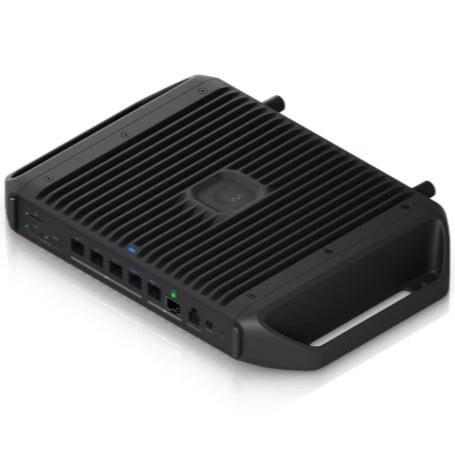 |
Cloud Gateway Industrial (UCG-Industrial) |
1x 10GbE (PoE+++), 1x SFP+, 4x 2.5GbE (2x PoE+ and 2x P0E+++) |
10Gbps | Dual-band BE5000 | (15) HD (8) 2K (5) 4K microSD |
Self, UDR, UDR7, 5G-Max (compare specs and costs) |
Desktop and various mount designs for rough environments |
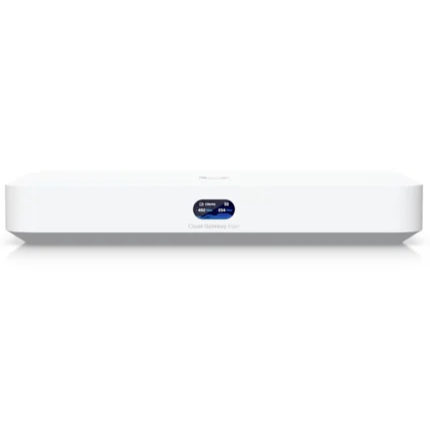 |
Cloud Gateway Fiber (UCG-Fiber) |
1x 10GbE, 2x SFP+, 4x 2.5GbE (1x PoE+) |
10Gbps | None | (15) HD (8) 2K (5) 4K NVMe SSD |
Self, UCG-Max (compare specs and costs) |
Desktop design |
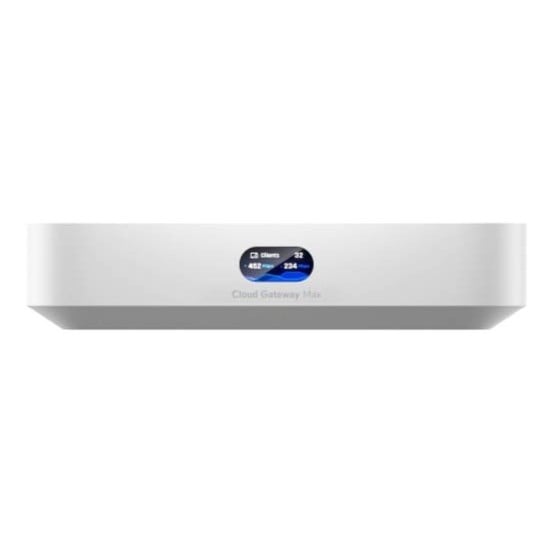 |
Cloud Gateway Max (UCG-Max) |
5x 2.5GbE | 2.5GbE | None | (15) HD (8) 2K (5) 4K NVMe SSD |
Self, UCG-Fiber (compare specs and costs) |
Desktop design |
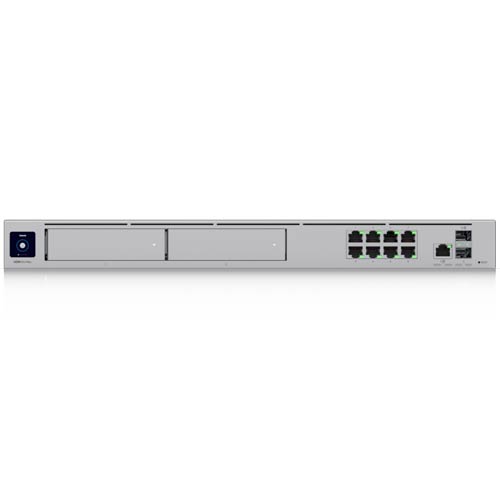 |
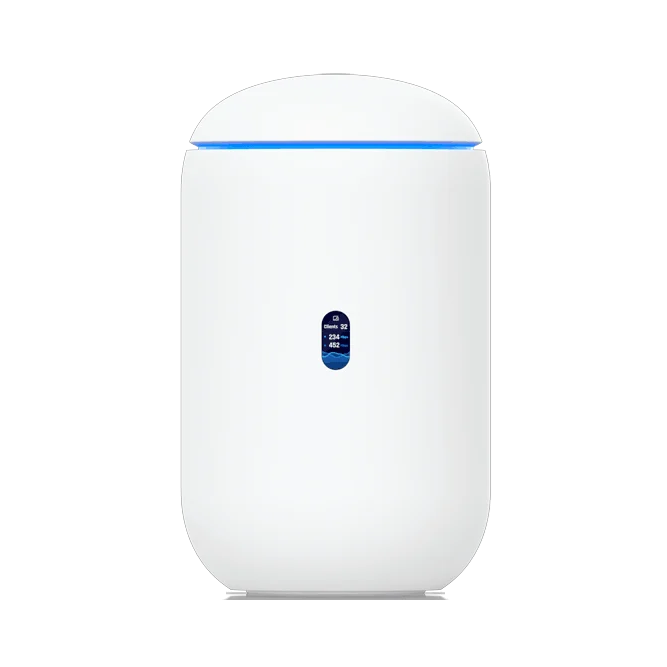
Dream Machine Pro Max (UDM-Pro-Max) |
2x SFP+, 1x 10GbE, 8x Gigabit |
10Gbps | None | (50) HD (25) 2K (15) 4K HDD |
Self, UDM-Pro, UDM-SE (compare specs and costs) |
Rackmount design |
 |
Dream Router 7 (UDR 7) |
1x SFP+ 4x 2.5Gbps (1x PoE) |
2.5Gbps | Tri-band BE11000 | (5) HD (2) 2K (1) 4K microSD |
UDR, UDR-5G-Max, UCG-Industrial (compare specs and costs) |
Desktop design |
 |
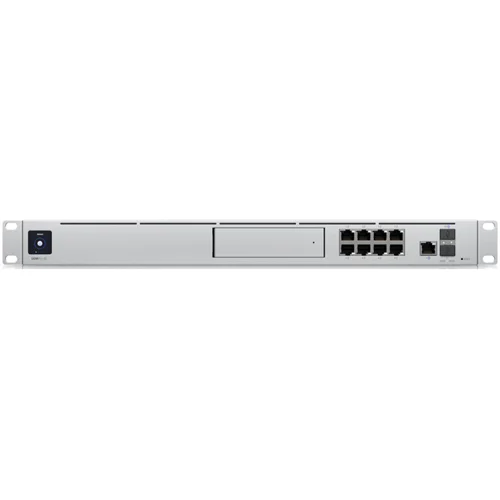
UniFi Express 7 (UX7) |
1x 10GbE 1x 2.5GbE |
2.5Gbps | Tri-band BE11000 | None | N/A | Desktop design, Can work as a UniFi access point or mesh point |
 |
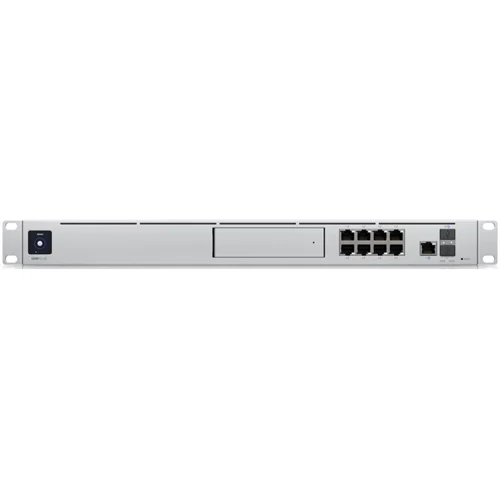
Dream Machine Second Edition (UDM-SE) |
2x SFP+, 1x 2.5GBE, 8x Gigabit (2x PoE+ and 6x PoE) |
10Gbps | None | (24) HD (14) 2K (8) 4K HDD |
Self, UDM-Pro, UDM-Pro-Max (compare specs and costs) |
Rackmount environment |
 |
Dream Machine Pro (UDM-Pro) |
2x SFP+, 9x Gigabit |
10Gbps | None | (24) HD (14) 2K (8) 4K HDD |
Self, UDM-SE, UDM-Pro-Max (compare specs and costs) |
Rackmount design |
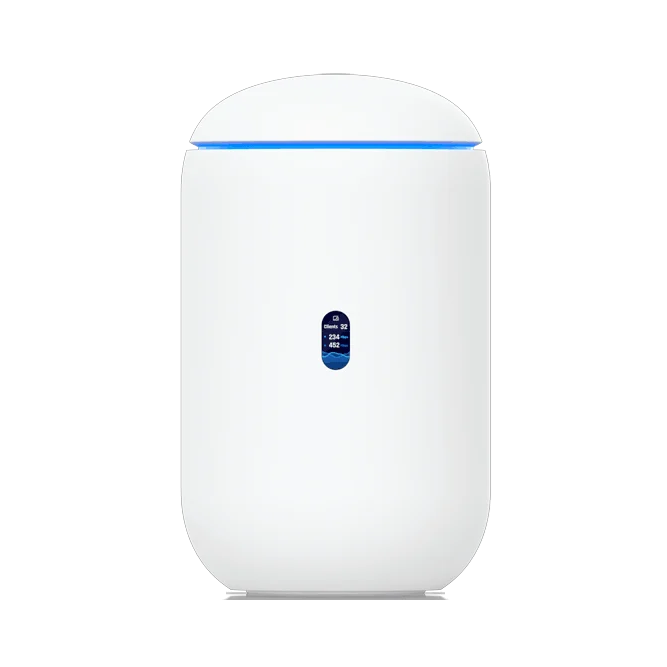 |
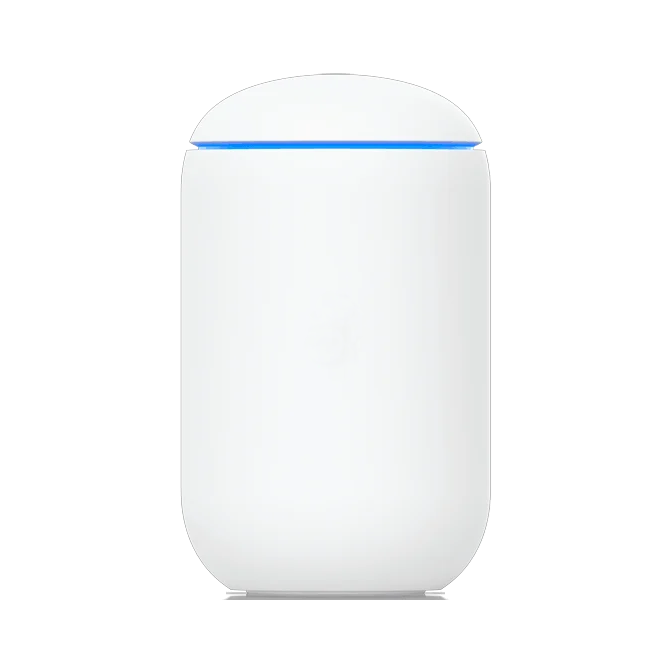
Dream Router (UDR) |
5x Gigabit (2x PoE) | Gigabit | Dual-band AX3000 | (5) HD (2) 2K (1) 4K microSD |
Self, UDR7, UDR-5G-Max, UCG-Industrial (compare specs and costs) |
Desktop design |
 |
Dream Machine (UDM) |
5x Gigabit | Gigabit | Dual-band AC2000 | None | N/A | Desktop design |
From the table above, you’ll note, for example, that you can switch the UniFi Protect app from UCG-Max to UCG-Fiber, or vice versa, while keeping the existing recordings by moving the NVMe SSD from the source gateway to the replacement one. Keeping the existing recordings is not possible if you also want to replace that SSD. Needless to say, it’s not possible to retain existing recordings when you move from the UCG-Fiber to the UCG-Industrial, as the two use different media types.
Now that we’re clear on when it’s possible to keep the existing UniFi Protect’s recordings, here are the steps to perform the replacement:
- Back up the current console’s settings to a file (or to Ubiquiti’s cloud if you use a UI account) and turn it off.
- Move the storage device from it into the replacement gateway.
- During the setup process for the replacement gateway, select the option to restore it using the backup file created in #1.
Upon finishing the process, you’ll note that both the Network and Protect apps will have the same or largely the same settings as the previous gateway. Still, as a rule, check that everything is in proper working order.
The takeaway
There you go, if you’re new to the UniFi ecosystem, you now know which console to start with. And if you have been using one and now want to do more, you know which replacement to get or which add-on upgrade to buy.
Still undecided? You almost can’t go wrong with any of the frequently updated top five below.